Location spoofing isn't working
Nine checks, ordered most to least common. Start here when a site still sees your real location.
Last updated:
These are ordered from most to least common. You likely won't need to reach the end.
GeoSpoof also runs on Chrome, Edge, Brave, and Safari. The steps below are written for Firefox, where these conflicts are most common — on other browsers, apply the equivalent settings.
Refresh the tab, or reopen it
GeoSpoof only takes effect on pages loaded after it's enabled. Any tab that was already open when you installed, updated, or re-enabled GeoSpoof won't be spoofed until it reloads. Refresh the tab you're testing — if that doesn't help, close it and open it again.
Update to the latest version
Many issues are already fixed in a newer release. In the popup, open Settings (the gear icon in the header) to see your version, then compare it to the latest release below and update through your browser's extension manager if you're behind.
View the latest release on GitHubConfirm GeoSpoof is running on the site
GeoSpoof's toolbar icon shows whether it's active on the current tab. If it isn't active, nothing gets spoofed — most often because of the site scope set in the Filters tab.

Active on this tab 
Not running on this tab - Allowlist mode: only listed sites are spoofed — add the site you're testing.
- Denylist mode: make sure the site isn't on the list.
- Or switch to "All" to spoof everywhere.
Reset the site's location permission
If a test reports "Geolocation: Denied", Firefox is blocking the request — usually because the prompt was once denied with "Remember this decision" checked.
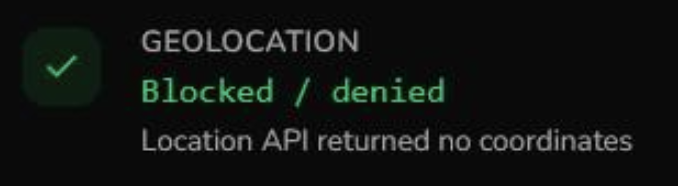
What a blocked location request looks like on a fingerprint test. - Click the lock icon in the address bar.
- Clear any remembered Block for location, then reload the page.
- In Firefox settings, confirm "Block new requests asking to access your location" is off.
- If GeoSpoof's "Preserve location prompts" toggle is on and you denied the prompt, either allow it or turn the toggle off so GeoSpoof answers directly.
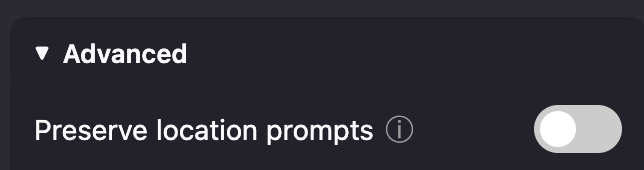
GeoSpoof popup with "Preserve location prompts" turned off. Restart your browser
Some browser APIs are set up at startup, so a recent install, update, or settings change may not take effect until you fully close and reopen your browser.
Best diagnostic
Test in a fresh Firefox profile
A clean profile isolates GeoSpoof from your existing setup.
- Open
about:profilesand create a new profile. - Launch it, install GeoSpoof, and test the same site again.
If spoofing works in the clean profile, GeoSpoof itself is fine — something in your normal profile is interfering, almost always a privacy tool or an
about:configchange. The next two steps cover those.- Open
Disable conflicting privacy tools
Hardening tools change many of the same browser APIs as GeoSpoof and can override it. Temporarily disable any you use, then retry: Arkenfox, Betterfox, LibreWolf, CanvasBlocker, JShelter, Chameleon, Trace, or any fingerprint randomizer.
Check
about:config(advanced)If you've hardened Firefox, confirm these preferences are disabled, then restart and retry. Strict Enhanced Tracking Protection is usually fine and doesn't need changing.
privacy.resistFingerprintingprivacy.fingerprintingProtectionprivacy.fingerprintingProtection.pbmode
Confirm on a second fingerprint test
Tests measure different APIs and some are simply buggy. Before assuming GeoSpoof is at fault, verify the result on another reputable test — we recommend the Region section of arkenfox's TZP.
Open the TZP test
A specific website isn't being spoofed
I see "Extensions cannot run on this page"
about:blank, chrome://, about:newtab, and extension store pages. This is a browser security boundary that cannot be bypassed. GeoSpoof works on all normal websites.