GeoSpoof GPS setup on Windows
The full Windows walkthrough. No Xcode needed — Windows extracts Apple's developer image from one Xcode download you make with a free Apple Account.
Last updated:
GeoSpoof GPS opens a setup wizard the first time you run it. Connect your iPhone with a cable — pairing only works over a cable — and work down the list. After that it runs over Wi-Fi with no cable needed.
What you'll need
- Windows 10 or later, 64-bit.
- The GeoSpoof app for iPhone with GeoSpoof Pro. The app is your control surface that sets the location, and moving the device's real GPS is a Pro feature.
- An iPhone, plugged in with a data-capable cable for first-time setup. After that it needs to reach your PC over a cable, the same Wi-Fi network, or a hotspot whenever you set or change a location.
- Apple's device service, which Windows doesn't include. The wizard installs it for you — step 2 below.
- One Xcode download from Apple, around 2.8 GB. Xcode 16 or newer, and a free Apple Account is enough.
Set up GeoSpoof GPS on Windows
Install GeoSpoof GPS
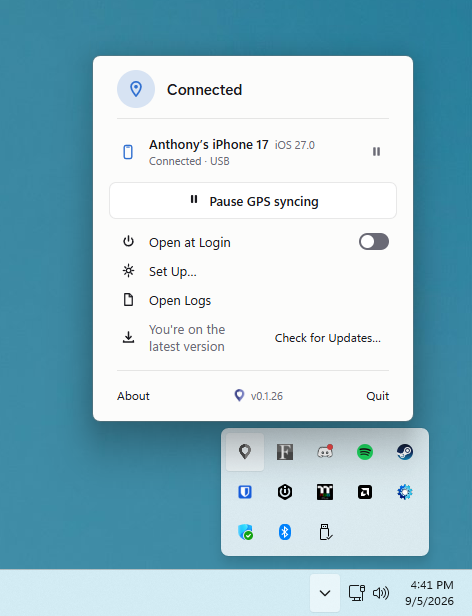
Run the installer. GeoSpoof GPS has no window — it lives in the notification area, next to the clock — and it opens the setup wizard the first time it runs.
- Don't see the pin? Click the chevron on the taskbar to show hidden icons.
Install Apple's device service
Windows talks to iPhones through Apple's device service, and it isn't part of Windows. Without it nothing on your PC can see your iPhone — not GeoSpoof GPS, not File Explorer. The wizard has an “Install it for me” button; Windows will ask for permission first, because it installs for every user on the PC.
- Prefer to run it yourself? The wizard shows the exact command, and you can run it in PowerShell.
- Don't install the “Apple Devices” app from the Microsoft Store for this. It's sandboxed and doesn't register the service, so setup will still say the service is missing after you've installed it. iTunes does include the service, but it's a much heavier install than you need.
- A restart usually isn't needed — the wizard picks up the moment the install finishes. If it still can't see your iPhone afterwards, restarting Windows settles it.
winget install --id Apple.AppleMobileDeviceSupport -eConnect your iPhone
Plug your iPhone into your PC with a cable and unlock it. Some cables are charge-only, so if nothing appears, try another cable or port.
Trust this computer
When your iPhone asks whether to trust this computer, tap Trust and enter your passcode. That lets your PC and phone talk to each other.
- No prompt? Keep the phone unlocked, then unplug and replug the cable. The alert only shows while the screen is unlocked.
- Last resort only: Settings ▸ General ▸ Transfer or Reset iPhone ▸ Reset ▸ Reset Location & Privacy, then reconnect and tap Trust.
Enable Developer Mode
On your iPhone, open Settings ▸ Privacy & Security ▸ Developer Mode, switch it on, and restart when prompted. It only appears after the phone has connected to a computer at least once.
Pair with this PC
In the wizard, click Pair. This one-time secure handshake lets your PC drive the iPhone's GPS. Keep the phone unlocked and connected while it runs.
Get Apple's developer image
This is the Windows-specific step, and it's once per PC. Open Apple's download page, sign in with your normal Apple Account, find the newest Xcode, and download its .xip file. Then come back and choose that file in the wizard — GeoSpoof GPS pulls the 23 MB your iPhone needs out of it.
- Newest is always safe. You don't need to match your iOS version, but anything older than Xcode 16 won't work — Xcode 15 doesn't contain the image at all.
- It's around 2.8 GB, so give it time. If the file turns out to be empty or the download stopped early, GeoSpoof GPS will tell you to download it again rather than failing obscurely.
- Once it's extracted you can delete the Xcode download and never think about it again.
- Already have a developer image folder, or an iPhone you prepared earlier? The wizard has options for both, so you can skip the download.
Let it prepare your iPhone
The wizard checks the phone and finishes. This is usually instant. On an iPhone that has never had a developer image, it installs Apple's — that needs a round trip to Apple and can take a minute or two, so leave the window open.
Pick a location in GeoSpoof
Set your location as usual in the GeoSpoof app on your iPhone. Your iPhone's system-level GPS follows it and stays aligned as long as it can reach your PC over the cable, the same Wi-Fi network, or a hotspot.
- You can unplug the cable, but the connection has to stay. The PC app is what sets the GPS.
- Going out without your PC? Turn off Developer Mode while the location is active and it stays put. To change it later, turn Developer Mode back on, restart your iPhone, and connect it again.
If Windows Defender asks about the network
Allow it, and leave Public ticked. GeoSpoof GPS Agent listens for your iPhone on the local network, and Windows labels most home Wi-Fi as Public, so that's the tick that matters. This only affects the cable-free connection — over USB it reaches your phone through Apple's service and never touches the firewall, so blocking it leaves you on cable-only rather than breaking anything.
If it can't see your iPhone
A phone that's plugged in and charging, with Windows chiming when you connect it, but setup still stuck on “Connect your iPhone” is almost always Apple's device service missing. Windows announcing the device doesn't mean it can reach it. Go back to step 2.